NOTE: If you are installing NVM and Node on a Jenkins server, you will need to run all of the following under the jenkins user context. See this page for how to impersonate the Jenkins user: [Linux: Impersonating Users](https://wiki.galaxydump.com/link/111) As a quick answer, run this to become the Jenkins user, for the purpose of the steps in this article, you can use: `sudo su jenkins` Or: `sudo -u jenkins bash` And, be sure to exit from the jenkins user context, when finished.
## Installing NVM ##### For Windows Download and install the latest version of [nvm for Windows](https://github.com/coreybutler/nvm-windows/releases). ##### For Ubuntu From a terminal, navigate to your home folder with: `cd ~/` Run the following: ``` curl -fsSL https://raw.githubusercontent.com/nvm-sh/nvm/v0.39.5/install.sh | bash ``` If the above gives you any warning that it had trouble editing your shell profile file, try running it as sudo.NOTE: If you are installing NVM for a system account, such as Jenkins, follow the steps in the Jenkins section, first.
If the above, failed to edit your profile file, you can always edit your profile file manually, like this: Your shell profile file will be one of the following: `~/.bashrc`, `~/.profile`, or `~/.bash_profile` Navigate to your HOME folder, and open your profile file, and make sure the following is appended to its bottom: ```bash export NVM_DIR="$HOME/.nvm" [ -s "$NVM_DIR/nvm.sh" ] && \. "$NVM_DIR/nvm.sh" # This loads nvm [ -s "$NVM_DIR/bash_completion" ] && \. "$NVM_DIR/bash_completion" # This loads nvm bash_completion ``` Once appended, save and close. If you have an open shell session as the system account user, execute this to apply the changes you just made: ```bash source ~/.bashrc ``` ### Jenkins-Specific Problems For a Jenkins install on an Ubuntu build server, the above curl command gives this warning: [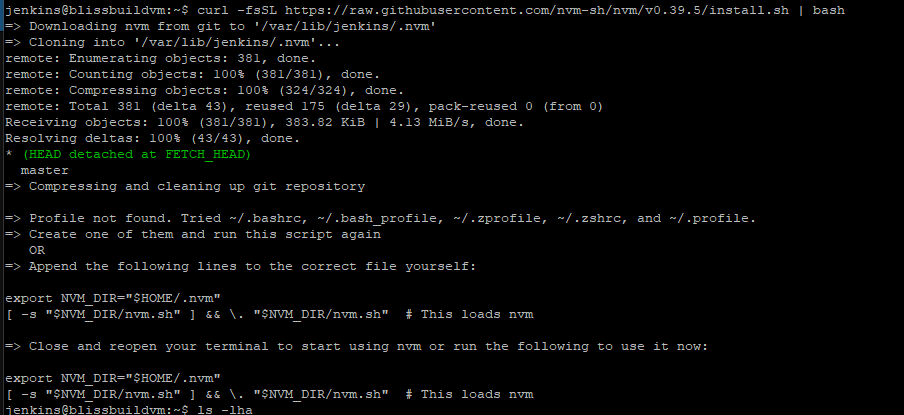](https://wiki.galaxydump.com/uploads/images/gallery/2025-02/V9npSnnZYkLR9do0-image.png) This is because the Jenkins user is a system account, and the NVM installer cannot determine a profile file to update. Follow the steps on this page, to add a shell and profile file for the Jenkins user: [Ubuntu: Converting a System Account to Interactive](https://wiki.galaxydump.com/link/120) Once complete, you can rerun the NVM installer, and it should complete without issue.NOTE: If you are installing NVM on a Jenkins build server, the nvm.sh script that gets installed does not have execute permission by default. This will cause an error during a Jenkins build job, when using NVM to change or install a version of Node.js. To fix this, allow execute permission for the script with this: `sudo chmod 774 ~/.nvm/nvm.sh`
### Verify NVM Install Run the following to confirm that NVM is installed.NOTE: NVM is installed on a per-user basis. So, you will need to be in a shell session of the specific user.
```bash nvm --version ``` Once confirmed installed, you can install the desired Node.js versions that NVM will manage for you. ### Usage ##### Installing Versions Once installed, you need to tell NVM to install the desired Node.js versions that it will manage for you: `nvm install 16` `nvm install 20` `nvm install 22` ##### Switching Versions With the desired versions of Node.js installed, you can use these commands to switch between them: To run Node.js v16 (for Angular v14): `nvm use 16.20.2` To run Node.js v20 (for Angular v17): `nvm use 20.18.3` To run Node.js v22 (for Angular v19): `nvm use 22.14.0`NOTE: Each time you tell NVM to switch versions, it may require answering a UAC popup.
##### Verifying Active Version And once NVM has switched in the desired Node.js version, you can call this, to verify: `node -v` [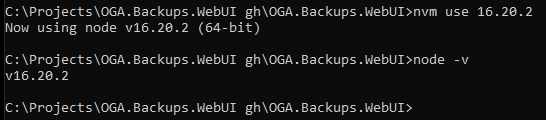](https://wiki.galaxydump.com/uploads/images/gallery/2025-02/dnru8J5X3FXFt31m-image.png) ##### Listing Installed Versions Use this command to see what versions of Node.js are installed and managed by NVM: ```bash nvm list ``` [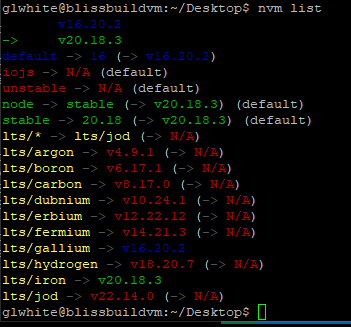](https://wiki.galaxydump.com/uploads/images/gallery/2025-02/kW0mJk1Nck3au8xf-image.png)