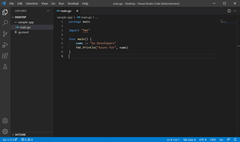
# GoLang Development

# VSCode for GoLang

From this page: [https://learn.microsoft.com/en-us/azure/developer/go/configure-visual-studio-code](https://learn.microsoft.com/en-us/azure/developer/go/configure-visual-studio-code)

## 1. Install Go

Install Go from the official page. This installs the compiler, the Standard Library, and many tools to perform various common tasks during Go development. To install Go, follow these steps:

1. In a web browser, go to [go.dev/doc/install](https://go.dev/doc/install).
2. Download the version for your operating system.
3. Once downloaded, run the installer.
4. Open a command prompt, then run `go version` to confirm Go was installed.

## 2. Install Visual Studio Code

Next, install Visual Studio Code, which provides basic code editing functionality. Follow these steps to install Visual Studio Code:

1. Open a web browser and go to [code.visualstudio.com](https://code.visualstudio.com/).
2. Download the version for your operating system. Visual Studio Code supports Windows, Linux, and macOS.
3. Once downloaded, run the installer.

## 3. Install the Go extension

Install and configure the [Go for Visual Studio Code](https://marketplace.visualstudio.com/items?itemName=golang.Go) extension. Visual Studio Code and the Go extension provide IntelliSense, code navigation, and advanced debugging.

<div class="buttons buttons-right margin-bottom-none margin-top-sm" id="bkmrk-expand-table"><button class="button button-clear button-sm display-flex gap-xxs">Expand table</button></div><div class="has-inner-focus" id="bkmrk-instructions-screens"><table aria-label="3. Install the Go extension" class="table table-sm margin-top-none"><thead><tr><th>Instructions</th><th>Screenshot</th></tr></thead><tbody><tr><td>In Visual Studio Code, bring up the Extensions view by clicking on the Extensions icon in the Activity Bar. Or use keyboard shortcut (Ctrl+Shift+X).</td><td><span class="mx-imgBorder">[![A screenshot showing how search for the Go extension.](https://learn.microsoft.com/en-us/azure/developer/go/media/configure-visual-studio-code/search-extensions-240px.png)](https://learn.microsoft.com/en-us/azure/developer/go/media/configure-visual-studio-code/search-extensions.png#lightbox)</span></td></tr><tr><td>Search for the Go extension, then select install.</td><td><span class="mx-imgBorder">[![A screenshot showing how to use the search box in the top tool bar to find App Services in Azure.](https://learn.microsoft.com/en-us/azure/developer/go/media/configure-visual-studio-code/install-go-extension-240px.png)](https://learn.microsoft.com/en-us/azure/developer/go/media/configure-visual-studio-code/install-go-extension.png#lightbox)</span></td></tr></tbody></table>

</div>## 4. Update the Go tools

<div class="buttons buttons-right margin-bottom-none margin-top-sm" id="bkmrk-expand-table-1"><button class="button button-clear button-sm display-flex gap-xxs">Expand table</button></div><div class="has-inner-focus" id="bkmrk-instructions-screens-1"><table aria-label="4. Update the Go tools" class="table table-sm margin-top-none" style="width: 100%;"><thead><tr><th style="width: 50.0618%;">Instructions</th><th style="width: 50.0618%;">Screenshot</th></tr></thead><tbody><tr><td style="width: 50.0618%;">In Visual Studio Code, open **Command Palette**'s **Help** &gt; **Show All Commands**. Or use the keyboard shortcut (Ctrl+Shift+P)</td><td style="width: 50.0618%;"><span class="mx-imgBorder">[![A screenshot showing how search the Command Palette.](https://learn.microsoft.com/en-us/azure/developer/go/media/configure-visual-studio-code/search-extensions-240px.png)](https://learn.microsoft.com/en-us/azure/developer/go/media/configure-visual-studio-code/search-extensions.png#lightbox)</span></td></tr><tr><td style="width: 50.0618%;">Search for `Go: Install/Update tools` then run the command from the pallet</td><td style="width: 50.0618%;"><span class="mx-imgBorder">[![A screenshot showing how to run the Go: install/update tool from the command pallet.](https://learn.microsoft.com/en-us/azure/developer/go/media/configure-visual-studio-code/install-go-tools-240px.png)](https://learn.microsoft.com/en-us/azure/developer/go/media/configure-visual-studio-code/install-go-tools.png#lightbox)</span></td></tr><tr><td style="width: 50.0618%;">When prompted, select all the available Go tools then select OK.</td><td style="width: 50.0618%;"><span class="mx-imgBorder">[![A screenshot showing how to update all the available Go tools.](https://learn.microsoft.com/en-us/azure/developer/go/media/configure-visual-studio-code/select-all-go-tools-240px.png)](https://learn.microsoft.com/en-us/azure/developer/go/media/configure-visual-studio-code/select-all-go-tools.png#lightbox)</span></td></tr><tr><td style="width: 50.0618%;">Wait for the Go tools to finish updating.</td><td style="width: 50.0618%;"><span class="mx-imgBorder">[![A screenshot showing all the Go tools that were updated.](https://learn.microsoft.com/en-us/azure/developer/go/media/configure-visual-studio-code/go-tools-install-240x.png)](https://learn.microsoft.com/en-us/azure/developer/go/media/configure-visual-studio-code/go-tools-install.png#lightbox)</span></td></tr></tbody></table>

</div>## 5. Write a sample Go program

In this step, you write and run a sample Go program to make sure everything is working correctly.

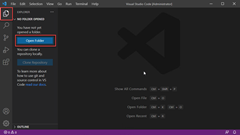
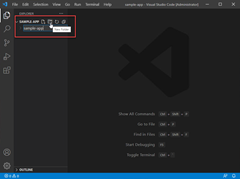
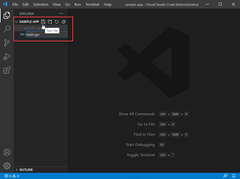
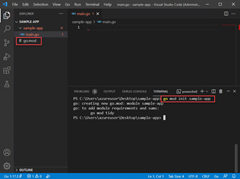
<div class="buttons buttons-right margin-bottom-none margin-top-sm" id="bkmrk-expand-table-instruc"><div class="buttons buttons-right margin-bottom-none margin-top-sm"><button class="button button-clear button-sm display-flex gap-xxs">Expand table</button></div><div class="has-inner-focus"><table aria-label="5. Write a sample Go program" class="table table-sm margin-top-none"><thead><tr><th>Instructions</th><th>Screenshot</th></tr></thead><tbody><tr><td>In Visual Studio Code, open the root directory of your Go application. To open the folder, select the Explorer icon in the Activity Bar then select **Open Folder**.</td><td><span class="mx-imgBorder">[![A screenshot showing how to create a new folder.](https://learn.microsoft.com/en-us/azure/developer/go/media/configure-visual-studio-code/open-folder-240px.png)](https://learn.microsoft.com/en-us/azure/developer/go/media/configure-visual-studio-code/open-folder.png#lightbox)</span></td></tr><tr><td>Select **New Folder** in the Explorer panel, then Create the root director for your sample Go application named `sample-app`</td><td><span class="mx-imgBorder">[![A screenshot showing how to create a folder in Visual Studio Code.](https://learn.microsoft.com/en-us/azure/developer/go/media/configure-visual-studio-code/create-folder-240px.png)](https://learn.microsoft.com/en-us/azure/developer/go/media/configure-visual-studio-code/create-folder.png#lightbox)</span></td></tr><tr><td>Select **New File** in the Explorer panel, then name the file `main.go`</td><td><span class="mx-imgBorder">[![A screenshot showing how to create a file in Visual Studio Code.](https://learn.microsoft.com/en-us/azure/developer/go/media/configure-visual-studio-code/create-file-240px.png)](https://learn.microsoft.com/en-us/azure/developer/go/media/configure-visual-studio-code/create-file.png#lightbox)</span></td></tr><tr><td>Open a terminal, **Terminal &gt; New Terminal**, then run the command `go mod init sample-app` to initialize your sample Go app.</td><td><span class="mx-imgBorder">[![A screenshot running the go mod init command.](https://learn.microsoft.com/en-us/azure/developer/go/media/configure-visual-studio-code/run-go-mod-240px.png)](https://learn.microsoft.com/en-us/azure/developer/go/media/configure-visual-studio-code/run-go-mod.png#lightbox)</span></td></tr><tr><td>Copy the following code into the `main.go` file.</td><td><span class="mx-imgBorder">[![A screenshot displaying a sample Go program.](https://learn.microsoft.com/en-us/azure/developer/go/media/configure-visual-studio-code/visual-studio-code-240px.png)](https://learn.microsoft.com/en-us/azure/developer/go/media/configure-visual-studio-code/visual-studio-code.png#lightbox)</span></td></tr></tbody></table>

</div></div>Sample code:

<div class="buttons buttons-right margin-bottom-none margin-top-sm" id="bkmrk-gocopy"><div class="codeHeader" data-bi-name="code-header" id="bkmrk-gocopy-1"><span class="language">Go</span><button class="action position-relative display-none-print" data-bi-name="copy" type="button">Copy</button><div aria-hidden="true" class="successful-copy-alert position-absolute right-0 top-0 left-0 bottom-0 display-flex align-items-center justify-content-center has-text-success-invert has-background-success is-transparent">  
</div></div></div>```
package main

import "fmt"

func main() {
    name := "Go Developers"
    fmt.Println("Azure for", name)
}

```

## 6. Run the debugger

Finally, create a break point and use the debugger tool to step through code line by line and view the values stored in variables while the application is paused.

<div class="buttons buttons-right margin-bottom-none margin-top-sm" id="bkmrk-expand-table-instruc-1"><div class="buttons buttons-right margin-bottom-none margin-top-sm"><button class="button button-clear button-sm display-flex gap-xxs">Expand table</button></div><div class="has-inner-focus"><table aria-label="6. Run the debugger" class="table table-sm margin-top-none"><thead><tr><th>Instructions</th><th>Screenshot</th></tr></thead><tbody><tr><td>Create a break point on line 7 by clicking to the left of the numbered line. Optionally, place your cursor on line 7 and hit F9.</td><td><span class="mx-imgBorder">[![A screenshot showing how to set a breakpoint.](https://learn.microsoft.com/en-us/azure/developer/go/media/configure-visual-studio-code/create-breakpoint-240px.png)](https://learn.microsoft.com/en-us/azure/developer/go/media/configure-visual-studio-code/create-breakpoint.png#lightbox)</span></td></tr><tr><td>Open the Debug view by selecting the debug icon in the Activity Bar on the left side of Visual Studio Code. Optionally, use the keyboard shortcut (Ctrl+Shift+D).</td><td><span class="mx-imgBorder">[![A screenshot showing how to navigate to the debug panel.](https://learn.microsoft.com/en-us/azure/developer/go/media/configure-visual-studio-code/run-debugger-240px.png)](https://learn.microsoft.com/en-us/azure/developer/go/media/configure-visual-studio-code/run-debugger.png#lightbox)</span></td></tr><tr><td>Select *Run and Debug*, or select F5 to run the debugger. Then Hover over the variable `name` on line 7 to see its value. Exit the debugger by clicking **Continue** on the debugger bar or hit F5.</td><td><span class="mx-imgBorder">[![A screenshot showing running the debugger in VS Code.](https://learn.microsoft.com/en-us/azure/developer/go/media/configure-visual-studio-code/debug-variable-240px.png)](https://learn.microsoft.com/en-us/azure/developer/go/media/configure-visual-studio-code/debug-variable.png#lightbox)</span></td></tr></tbody></table>

</div></div>##   


<div class="buttons buttons-right margin-bottom-none margin-top-sm" id="bkmrk-expand-table-2"></div>