NOTE: We are installing on Ubuntu v24.04 in this tutorial.
Select Linux and Ubuntu from the click boxes. #### Install Run this to install PostgreSQL: ```bash sudo apt install postgresql ``` #### Listener By default, Postgres only listens on the localhost adapter. We will change it to listen on all adapters.NOTE: If you only want it to listen on a specific IP, use that.
Navigate to /etc/postgresql/\*/main/, and open postgresql.conf. Change the listen address to '\*'. It might not be set, at all. ``` listen_addresses = '*' ``` Like this: [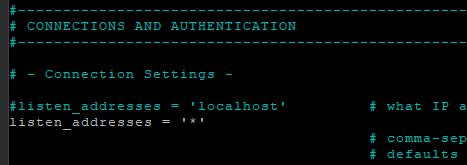](https://wiki.galaxydump.com/uploads/images/gallery/2025-06/moYTO1vHZmByGtUc-image.png) Save the file. Restart postgres with this: ```bash sudo systemctl restart postgresql.service ``` #### Set Postgres Password Now, we need to set the password for the postgres user. Run this in the terminal, to open the default template database: ```bash sudo -u postgres psql template1 ``` [](https://wiki.galaxydump.com/uploads/images/gallery/2025-06/7KKgjm9MvYGc57pD-image.png) Set the password for the postgres user with this: ```sql ALTER ROLE postgres WITH PASSWORD 'Your$trongPassword'; ``` Exit psql with 'exit'. #### Network Access With a listener and password set, we need to allow client access from outside the host. By default, the postgres listener only allows connections from inside the machine. We need to expand that to the local subnet. Open the pg\_hba.conf file (in /etc/postgresql/\*/main/), and allow access from the local subnet. Find the IPV4 line, that looks like this: ```bash host all all 127.0.0.1/32 scram-sha-256 ``` Change the allowed addresses to your subnet: ``` host all all 192.168.60.1/24 scram-sha-256 ``` The above allows access to all databases for all users coming from the 60 subnet.NOTE: For a production database, your security model may require tighter access. If so, you can change the above to specify what users and what databases can access from what addresses. Add more than one line if needed, similar to firewall rules.
If you need to provide specific access from multiple subnets or VLANs, you can add entries for each one, like this: ```bash host all all 192.168.1.0/24 md5 host all all 192.168.60.0/24 md5 host all all 192.168.70.0/24 md5 host all all 192.168.110.0/24 md5 host all all 192.168.120.0/24 md5 host all all 192.168.150.0/24 md5 host all all 192.168.160.0/24 md5 ``` Once changes have been made, restart the postgres service with: ```bash sudo systemctl restart postgresql.service ``` Or, if you are in a query window of pgadmin, you can run this to reload the hba config: ```sql SELECT pg_reload_conf() ```