NOTE: Set the report database at the top to where your assembly is loaded.
```sql USE [YourReportingDatabase]; GO SELECT a.assembly_id, a.name AS AssemblyName, a.clr_name AS CLRName, a.permission_set_desc AS PermissionSet, a.create_date, a.modify_date FROM sys.assemblies a WHERE a.is_user_defined = 1 ORDER BY a.name; ``` It will return something like this: [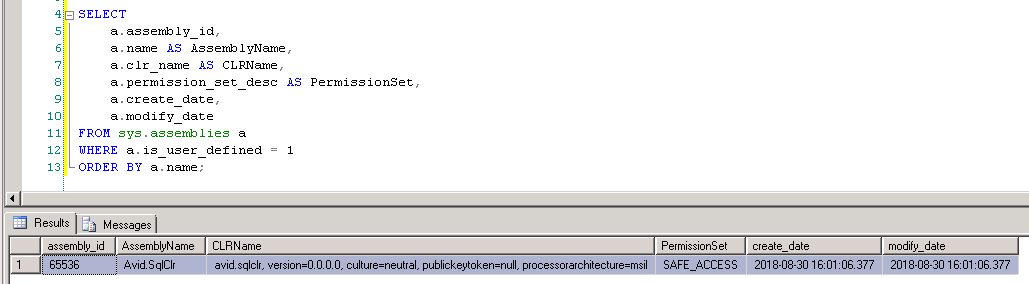](https://wiki.galaxydump.com/uploads/images/gallery/2026-10/NL8dI0vMIcR5jLjb-image.png) The stored dll name is in the AssemblyName column. You can see the assembly content in the database with this query:NOTE: Set the report database at the top to where your assembly is loaded.
```sql USE [YourReportingDatabase]; GO SELECT a.name AS AssemblyName, af.name AS FileName, af.file_id, DATALENGTH(af.content) AS FileSizeBytes, af.content FROM sys.assemblies a INNER JOIN sys.assembly_files af ON a.assembly_id = af.assembly_id WHERE a.is_user_defined = 1 ORDER BY a.name, af.file_id; ``` You'll see something like this: [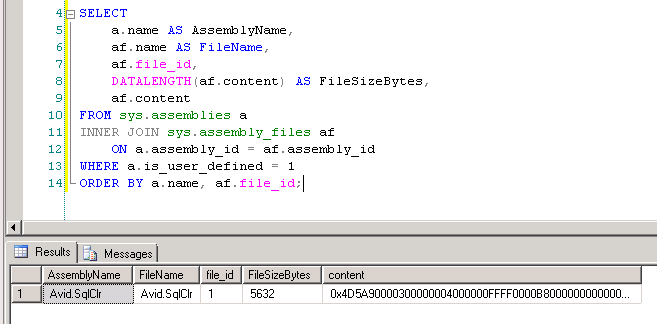](https://wiki.galaxydump.com/uploads/images/gallery/2026-10/WEKRQzoA6Fbd2RVw-image.png) ### Extract SQL Assembly If you want to extract the assembly back to a dll, you can use this powershell script:NOTE: Set four strings at the top before running it.
```powershell $Server = "OLD-SQL-SERVER" $Database = "YourReportingDatabase" $Assembly = "YourAssemblyName" $Output = "C:\Temp\YourAssemblyName.dll" Add-Type -AssemblyName System.Data $ConnectionString = "Server=$Server;Database=$Database;Integrated Security=True;" $Connection = New-Object System.Data.SqlClient.SqlConnection($ConnectionString) $Command = $Connection.CreateCommand() $Command.CommandText = @" SELECT af.content FROM sys.assembly_files af INNER JOIN sys.assemblies a ON af.assembly_id = a.assembly_id WHERE a.name = @AssemblyName AND af.file_id = 1 "@ $null = $Command.Parameters.Add("@AssemblyName", [System.Data.SqlDbType]::NVarChar, 128) $Command.Parameters["@AssemblyName"].Value = $Assembly try { $Connection.Open() $Bytes = $Command.ExecuteScalar() if ($null -eq $Bytes -or $Bytes -is [DBNull]) { throw "Assembly not found: $Assembly" } [System.IO.File]::WriteAllBytes($Output, [byte[]]$Bytes) Write-Host "Assembly extracted: $Output" Write-Host "Size: $($Bytes.Length) bytes" } finally { $Connection.Dispose() } ``` When it runs, it will extract the assembly bytes from the database, and create a dll file with them, at the path you specified. ### Install the SQL Assembly #### Prep the Target SQL Instance If you are intending to install a SQL Assembly on a SQL engine instance, you must first emable CLR integration. Run this to enable CLR integration: ```sql EXEC sp_configure 'show advanced options', 1; RECONFIGURE; EXEC sp_configure 'clr enabled', 1; RECONFIGURE; ``` You'll see messages like the following: [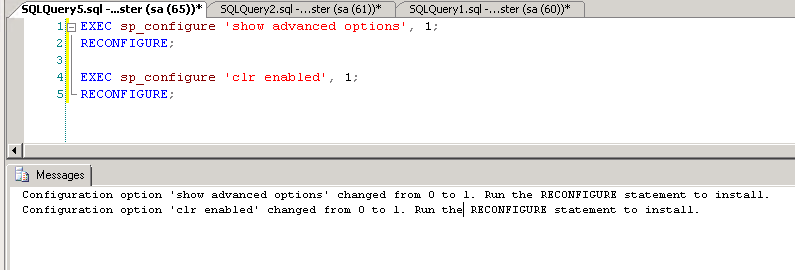](https://wiki.galaxydump.com/uploads/images/gallery/2026-10/w2pWX9WC85DscdBR-image.png)NOTE: You don't have to actually do a reconfigure at that point. It's an informational response.
#### Verify CLR is Enabled You can run this to check that the CLR got enabled in the previous step: ```sql SELECT name, value, value_in_use FROM sys.configurations WHERE name = 'clr enabled'; ``` If enabled, you'll see something like this: [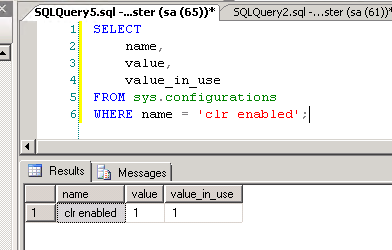](https://wiki.galaxydump.com/uploads/images/gallery/2026-10/tfxB4I6kHOfJPC4w-image.png) If you see value\_in\_use as 0, then you will have to run the reconfigure command. If so, run it with this, then check again: ```sql RECONFIGURE; ``` #### Register SQL Assembly Once you've enabled CLR usage, you can register the SQL assembly, with the following:NOTE: Be sure to set the target database, assembly name, and path.
```sql USE [TargetDatabase]; GO CREATE ASSEMBLY [YourAssemblyName] FROM 'C:\Temp\YourAssemblyName.dll' WITH PERMISSION_SET = SAFE; GO ``` Once succesful, it will look like this: [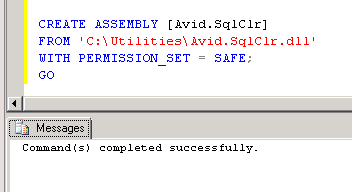](https://wiki.galaxydump.com/uploads/images/gallery/2026-10/yeICYerynA9yF7WD-image.png) #### Verify the Assembly You can verify the assembly was installed, with this: ```sql SELECT name, permission_set_desc, create_date FROM sys.assemblies WHERE is_user_defined = 1; ``` It will look like this: [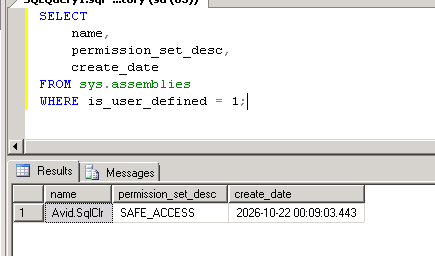](https://wiki.galaxydump.com/uploads/images/gallery/2026-10/d7L8qdMrTBYfSp2w-image.png) ### Exposing Methods Once you've loaded the SQL Assembly, you need to expose its methods for use. You'll have to adapt a declaration for each method you expose. Each one will have a shape like the following: ```sql USE [databasename] GO /****** Object: UserDefinedFunction [dbo].[udfs_clr_ConvertDateTimeToTicks] Script Date: 10/22/2026 00:34:49 ******/ CREATE FUNCTION [dbo].[udfs_clr_ConvertDateTimeToTicks](@UtcDate [datetime]) RETURNS [bigint] WITH EXECUTE AS CALLER AS EXTERNAL NAME [Avid.SqlClr].[Avid.SqlClr.Date].[ConvertDateTimeToTicks] GO ```