Note: These instructions are tested on on Ubuntu v22 through v24. They may require updates for other versions.
#### Spawn VM Clone The first step is to spawn a clone of the template VM. Be sure to do the following: 1. Give it an inventory name that fits its hostname. 2. Update the CPU count. 3. Set the memory size. 4. Set its disk space for the intended service. 5. Assign the VM's NIC to the Provisioning portgroup (VLAN 170). This will ensure that we can access it via SSH, for faster setup. Once the VM is started, log into its console session. #### Update Packages From the console, update packages of the VM. Do this before anything else, to ensure the latest package versions are used. ```bash sudo apt-get update && sudo apt-get upgrade -y ``` #### Ubuntu: SSH Server See this page for setting up the SSH Server: [Ubuntu: SSH Server](https://wiki.galaxydump.com/link/118) #### Initial Remote Access (VLAN 170) Once the VM is started up, and in the Provisioning VLAN (VLAN 170), it should have a DHCP address that we can reach. From the VM's local console, run this to get its IP on the provisioning VLAN: ```bash ifconfig ``` Open an SSH session to the VM, for remote setup. #### Setting the Host Name See this page for how to set the hostname: [Ubuntu: Set Hostname](https://wiki.galaxydump.com/link/439) #### Other Packages We will install net-tools on each host, for diagnostic purposes. ```bash sudo apt install net-tools ``` #### Managed Host Setup If the VM will be managed by Ansible and deployment tools, see this page for setup steps: [Managed Host User Setup](https://wiki.galaxydump.com/link/395) #### User Setup Configure any users and groups that the VM will need. This may include a deployment user. #### SSH Keys We need to add SSH public keys for users added, above. See this page for the various method of adding SSH keys to a remote linux host: [Linux SSH Key Management](https://wiki.galaxydump.com/link/447) #### Switch SSH to Key Auth Once you have installed SSH public keys in the VM, you need update the SSH config to SSH authentication. To do so, open the sshd config file, with this: ```bash sudo nano /etc/ssh/sshd_config ``` Look for the line with this directive, 'PasswordAuthentication'. Uncomment the line, and set it to no, like this: ```bash PasswordAuthentication no ``` In the config file, set Key Auth to yes: ```bash PubkeyAuthentication yes ``` Save and close the SSH config file. Restart SSH with this: ```bash sudo systemctl restart ssh ``` #### Verify SSH Keys Now that SSH key authentication is enabled, you need to verify that each added SSH public key works. Attempt to connect with the VM, using each configured SSH key. Verify each one works. See this page for steps on how to connect to a Linux host from Windows: [Connecting to SSH Server from Windows](https://wiki.galaxydump.com/link/441) #### Routing and Firewall So far, we are accessing the VM on a temporary provisioning network. We need to set things up for its final location. Create a proper firewall rule for accessing the VM at its final IP address, in its target VLAN. #### Static IP Address With the above firewall rule in place, we will be able to access the VM, once it's moved to its target VLAN. But first, we need to set its static IP address: [Ubuntu: Setup Static IP Address](https://wiki.galaxydump.com/link/119) #### Change VLAN PortGroup Setting the static IP address, above, means that we lost temporary SSH access. We need to fix that. In the hypervisor, change the VM's portgroup to the target VLAN. #### Remote Access With the VM at its assigned static IP, in the target VLAN, and with access firewall rule exists, we can remote SSH to it. Attempt to open a remote SSH session to the VM. #### Root CA Certs If you are looking for the local intranet Root CA certificate, see this: [Current Intranet Root CA Certificate](https://wiki.galaxydump.com/link/454#bkmrk-current-intranet-roo) If your institution or company uses has its own certificate authority (CA), you should install its root CA into the following folder: ``` /usr/local/share/ca-certificates/ ``` For example, to add the root CA for the local network, create the file with this: ```bash sudo nano /usr/local/share/ca-certificates/ogsofttech.lan_ca.crt ``` Save and close the file. Once all root CA certs are added, you need to update the runtime's CA list, with this: ```bash sudo update-ca-certificates ``` See this page for how to add Root CA certificates: [How to Add Root CAs to Ubuntu](https://wiki.galaxydump.com/link/432) #### NTP Client Needs If the VM will be located in an isolated VLAN with restricted internet access, it may need access to the local NTP server. See this page for how to setup each host/VM to use the local private NTP server: [Ubuntu: Use Private NTP Server](https://wiki.galaxydump.com/link/457) #### Further Setup With the above things done, we can continue on with other setup. # Ubuntu: Setup SSH Server Here are steps to setup the SSH server on an Ubuntu host. Here's a good reference article for how to do what we're doing here: [How to Enable SSH on Ubuntu 20.04](https://linuxize.com/post/how-to-enable-ssh-on-ubuntu-20-04/) Here are the commands to execute: ```bash sudo apt update ``` Install the SSH server with this: ```bash sudo apt install openssh-server ``` Start the SSH server: ```bash sudo systemctl enable --now ssh ``` Verify it is running: ```bash sudo systemctl status ssh ``` Add a firewall rule for the SSH server: ```bash sudo ufw allow ssh ``` # Ubuntu: Setup Static IP Address Here are notes and steps to assign a static IP address for an Ubuntu host. These steps are known to work with Ubuntu 22 and 24.NOTE: If you are doing for a Debian host, see this page: [Debian: Setup Static IP Address](https://wiki.galaxydump.com/link/577)
#### Net Tools (ipconfig) Install net tools, so we can use commands like: ipconfig `sudo apt install net-tools` #### Static IP Address Static addresses will be defined in a netplan file, configured below. But, we need to do a few things, first: - Get the Gateway IP - Enable Adapters #### Get the Gateway IP You will need to know the gateway address that your host will use. If the host is not on the desired network, you will need to determine the gateway IP, manually. Or, you can join the host to the network, and do the following to determine it. If the host is up, you can run this command to get the current default gateway assigned to it: `ip r | grep default` This command will return the default gateway address, like this: [](https://wiki.galaxydump.com/uploads/images/gallery/2025-02/h6MJkA6IxvRSQ4ii-image.png) #### Enable Adapters If you added an adapter to the host, it may be in a down state. To enable it, use this command to find the name: ```bash sudo ip a | grep ^[[:digit:]] ``` The above will give a list, like this: [](https://wiki.galaxydump.com/uploads/images/gallery/2025-02/uVSzS5rVVjzGu6Oi-image.png) And, you can enable it with this: ```bash sudo ifconfig eth1 up ```NOTE: Be sure to use the name of the nic, from the previous call.
#### NetPlan YML We will assign our static address, via NetPlan. Open the netplan file, so you can edit the network config. It will be located here: `/etc/netplan/` ### Existing Cloud YML If this folder contains a cloud yaml, you may have to disable cloud network config. To do so, create a file at: `/etc/cloud/cloud.cfg.d/99-disable-network-config.cfg` And, give it this content: `network: {config: disabled}` Delete the existing cloud yml file, so it does not interfere with the config you will build, next. Now, you can write a config yaml file that will be accepted through a reboot. ### Editing NetPlan YML If a non-cloud netplan yml file exists, you may be able to edit it. The file on your host may have a different name, depending on OS version. Check the filename before running this command. Here’s the name of a valid netplan file that can be created, if one does not already exist. `sudo nano /etc/netplan/01-network-manager-all.yaml` Edit the file to reflect the following. Be sure to use your ethernet adapter name (enps3s0), or whatever its name was discovered to be earlier. Create the netplan file with the above name, `01-network-manager-all.yaml` Set it up with your ether adapter names, static address, DNS, and gateway addresses. The following are examples you can use: ```yaml network: version: 2 renderer: networkd ethernets: enp3s0: addresses: - 10.10.10.2/24 nameservers: search: [mydomain, otherdomain] addresses: [10.10.10.1, 1.1.1.1] routes: - to: default via: 10.10.10.1 ``` Here’s a working netplan file, in use on AWS, that has two NICs (public and private subnets): ```yaml # This sample has two network adapters, each in different subnets. # The first NIC has a configured gateway and DNS. # The second NIC is in a private subnet. network: version: 2 renderer: networkd ethernets: eth0: addresses: - 10.0.1.10/24 nameservers: addresses: [127.0.0.53,8.8.8.8,8.8.4.4] routes: - to: default via: 10.0.1.1 eth1: addresses: - 10.0.2.10/20 ``` Create the Save changes to the file. Make sure the created netplan file is only accessible by root, by doing this: ```bash sudo chmod 600 ./01-network-manager-all.yaml ``` And, apply changes with: ```bash sudo netplan apply ``` Check that connectivity exists through a reboot, to make sure settings persist. # Ubuntu: Set Hostname Here are steps to properly set the hostname of an Ubuntu server. #### HostnameCtl Get the current hostname with this: ```bash hostnamectl ``` [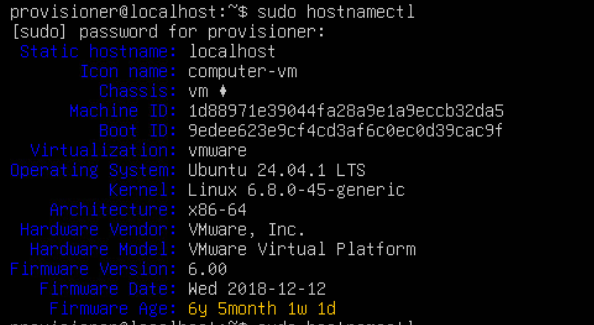](https://wiki.galaxydump.com/uploads/images/gallery/2025-05/Kl3ruPr1mCRlCusB-image.png) To set it, use this: ```bash sudo hostnamectl set-hostname new-hostname (replace new-hostname) ``` Once set, confirm it with the previous command. #### Hosts File Now, you need to update the hostname in your hosts file, with this: ``` sudo nano /etc/hosts ``` The hosts file lists the hostname in the second entry: 127.0.1.1, like this: [](https://wiki.galaxydump.com/uploads/images/gallery/2025-09/ZU6887t9afTNg3ft-image.png) Update the 127.0.1.1 entry with the correct hostname. Save and close the hosts file after update. # Linux: Manually Installing SSH Keys Here's some steps on how to manually install SSH public keys in a host. #### 1. SSH Key Folder Navigate to the home folder for the user, with the following command: ```bash cd /home/username ``` Check if the .ssh folder exists (it is hidden, requiring the -a switch): ```bash ls -al ``` If the .ssh folder does not exist, create it with the following commands (from the user folder): ```bash sudo mkdir ~/.ssh ``` ```bash sudo chmod 0700 ./.ssh ``` #### 2. SSH Key File Enter the ssh key folder with: ```bash cd ./.ssh ``` And, check if any key files are there, with: ```bash ls -l ``` [](https://wiki.galaxydump.com/uploads/images/gallery/2025-09/3Mcn7KKxyMbGIyTR-image.png) Make sure the key file has the same name that was defined in the ssh config file, in previous steps. If no key file, create one with (making sure to use the correct key file name): ```bash sudo touch ./authorized_keys ``` Set permissions on the key file: ```bash sudo chmod 600 ./authorized_keys ``` #### From Windows This section is for copying the public key string from a Windows, host. The tricks to successfully pasting in an SSH key to the ssh key file are: - Always paste the key string as a single line - The key string must being with, “ssh-rsa“ - Strip out any “Begin SSH2 PUBLIC KEY” and ending - The key line should contain the key comment at the end of the line, for easy identification - A key string should be of the form: ssh-rsa \[really long base64 key string here\] \[key comment\] - Single whitespace is needed between each component of the key line - The key comment must have no whitespace in it The easiest way to get this string is to load a key in PuttyGen. Then, paste the entire key string directly from the text window of the form, like this: [](https://wiki.galaxydump.com/uploads/images/gallery/2025-09/QzY2Ss7qNnaMRONl-image.png) #### From Linux If you do not have password-based SSH access to your server available, you will have to complete the above process manually. We will manually append the content of your id\_rsa.pub file to the ~/.ssh/authorized\_keys file on your remote machine. To display the content of your id\_rsa.pub key, type this into your local computer: ```bash cat ~/.ssh/id_rsa.pub ``` You will see the key’s content, which should look something like this: ``` Outputssh-rsa AAAAB3NzaC1yc2EAAAADAQABAAACAQCqql6MzstZYh1TmWWv11q5O3pISj2ZFl9HgH1JLknLLx44+tXfJ7mIrKNxOOwxIxvcBF8PXSYvobFYEZjGIVCEAjrUzLiIxbyCoxVyle7Q+bqgZ8SeeM8wzytsY+dVGcBxF6N4JS+zVk5eMcV385gG3Y6ON3EG112n6d+SMXY0OEBIcO6x+PnUSGHrSgpBgX7Ks1r7xqFa7heJLLt2wWwkARptX7udSq05paBhcpB0pHtA1Rfz3K2B+ZVIpSDfki9UVKzT8JUmwW6NNzSgxUfQHGwnW7kj4jp4AT0VZk3ADw497M2G/12N0PPB5CnhHf7ovgy6nL1ikrygTKRFmNZISvAcywB9GVqNAVE+ZHDSCuURNsAInVzgYo9xgJDW8wUw2o8U77+xiFxgI5QSZX3Iq7YLMgeksaO4rBJEa54k8m5wEiEE1nUhLuJ0X/vh2xPff6SQ1BL/zkOhvJCACK6Vb15mDOeCSq54Cr7kvS46itMosi/uS66+PujOO+xt/2FWYepz6ZlN70bRly57Q06J+ZJoc9FfBCbCyYH7U/ASsmY095ywPsBo1XQ9PqhnN1/YOorJ068foQDNVpm146mUpILVxmq41Cj55YKHEazXGsdBIbXWhcrRf4G2fJLRcGUr9q8/lERo9oxRm5JFX6TCmj6kmiFqv+Ow9gI0x8GvaQ== demo@test ``` Access your remote host using whichever method you have available. Once you have access to your account on the remote server, you should make sure the ~/.ssh directory exists. This command will create the directory if necessary, or do nothing if it already exists: ```bash mkdir -p ~/.ssh ``` Now, you can create or modify the authorized\_keys file within this directory. You can add the contents of your id\_rsa.pub file to the end of the authorized\_keys file, creating it if necessary, using this command: ```bash echo public_key_string >> ~/.ssh/authorized_keys ``` In the above command, substitute the public\_key\_string with the output from the cat ~/.ssh/id\_rsa.pub command that you executed on your local system. It should start with ssh-rsa AAAA.... Finally, we’ll ensure that the ~/.ssh directory and authorized\_keys file have the appropriate permissions set: ``` chmod -R go= ~/.ssh ``` This recursively removes all “group” and “other” permissions for the ~/.ssh/ directory. If you’re using the **root** account to set up keys for a user account, it’s also important that the ~/.ssh directory belongs to the user and not to **root**: ```bash chown -R sammy:sammy ~/.ssh ```NOTE: The above example uses sammy as the username. Change this to the appropriate username for the target account.
### Connecting to SSH Server from Windows See this page for steps on how to connect to a Linux host from Windows: [Connecting to SSH Server from Windows](https://wiki.galaxydump.com/link/441) # How to Setup SSH Key Authentication to Linux This how to consolidates several aspects of setting up SSH key access to a Linux server.NOTE: We currently have two tutorials for this, that need to be consolidated into one. So, maybe this alternate tutorial fills your use-case: [Ubuntu SSH Key Access](https://oga.atlassian.net/wiki/spaces/~311198967/pages/47415311)
NOTE: If you are creating ssh keys for recent Ubuntu distributions, do not use RSA, as it is no longer an accepted key type (as of Ubuntu 21, I think). Use ecdsa instead.
## SSH Server Setup Follow this link to setup the SSH server on Ubuntu: [Ubuntu: Setup SSH Server](https://wiki.galaxydump.com/link/118 "https://wiki.galaxydump.com/link/118") ### Update SSH Config The SSH service needs to be configured to disallow passwords, and to require SSH key authentication. The following is list of actions to perform in the service configuration. #### SSH Key File NameNOTE: Not all ssh configuration files include the naming of the authorizedkeys file for users. And, different flavors of Ubuntu and linux use different naming conventions for the SSH key file of a user.
So, we have to determine the file name for ssh key files, and make sure it is set in the config file, and we use the same name. To find the ssh key file name, open the ssh config with the following: ```bash sudo nano /etc/ssh/sshd_config ``` Locate the line in the config file with, AuthorizedKeysFile. Uncomment the line if necessary. [](https://wiki.galaxydump.com/uploads/images/gallery/2025-09/JOEgve5BxdipkcU0-image.png) Make a note of the filename used. This will be needed when installing SSH keys. #### Prevent Remote Root Login This is also done in the ssh config file. Locate the line with PermitRootLogin, and set it to no, like this: [](https://wiki.galaxydump.com/uploads/images/gallery/2025-09/0CIw38glMCsc4g33-image.png) #### Disable Password Authentication This requires three changes in the ssh config file. Locate the line with ChallengeResponseAuthentication, and set it to no, like this: [](https://wiki.galaxydump.com/uploads/images/gallery/2025-09/yP7yJFVxFbQc5kAl-image.png) Locate the UsePAM line and set it to no, like this: [](https://wiki.galaxydump.com/uploads/images/gallery/2025-09/TBpK1oZHxoPzH0Bw-image.png) Locate the PasswordAuthentication line and set it to no, like this: [](https://wiki.galaxydump.com/uploads/images/gallery/2025-09/UxAAFdidAnYQvaaT-image.png) Disable interactive keyboard authentication by setting this: ``` KbdInteractiveAuthentication no ``` Save changes to the config file. #### Restart SSH With the changes made above, we need to restart the SSH service, with this: ```bash sudo systemctl restart ssh ```