
Debian: Offline Package Installation
If you need to add services or packages to a VM that has no internet access to pull down packages, here's an offline method.
ComparableNeeded Elements
For this method, we need a few pieces to get the job done.
- Sudo access on the target VM (the one without internet access).
- Access to a surrogate VM that has internet visibility
NOTE: In order to correctly retrieve packages that an offline VM requires, youthe shouldsurrogate haveVM accessneeds to abe similarthe VMsame withDistro internetand access.very close to the same OS version as the target VM.
This ensures that you can fetch anythe correct secondary dependencies (of the target package) that are needed (by the same Distro/version.version).
Log
- The ability to ferry a set of package files across the
surrogatenetworkVMboundarythat has internet access.This is where you will downloadto thepackages.isolated, target VM.
Process Steps
For demonstrations purposes, we will attempt to perform an offline install of SubVersion on a Debian 13.4 VM, using a surrogate Debian 13.5 VM with internet access.
Surrogate VM
Log into the surrogate VM.
CreateFrom an SSH session, create a download folder where you will download packages:packages, and navigate to it.
mkdir -p ~/Desktop/temppkg/subversion
cd ~/Desktop/temppkg/subversion
Once inside the download folder, we will download the desired package and secondary dependencies.\
Apt-RDepends
NOTE: Since any package that you want to install, has dependencies of its own, we will be downloading these secondary dependencies, as well.
NOTE: Downloading dependency sets, requires apt-rdepends, which is not part of a normal OS build.
This next step will install it.
If you skip it, you will get an error message, like this:
Command 'apt-rdepends' not found, but can be installed with: sudo apt install apt-rdepends
Before downloading the offline dependency set, you will need to ensure that apt-rdepends is installed on the surrogate VM.
Install apt-rdepends, with this:
sudo apt update
sudo apt install -y apt-rdepends
With apt-rdepends installed, we can safely download the target package and its secondary dependencies.
Package Download
The following command will download the setsubversion needed.package and all of its dependencies needed for a Debian 13.4 OS.
apt-get download $(apt-rdepends subversion | grep -v "^ ")NOTE: You can change the package name, in the above command, to get the dependency set for any package.
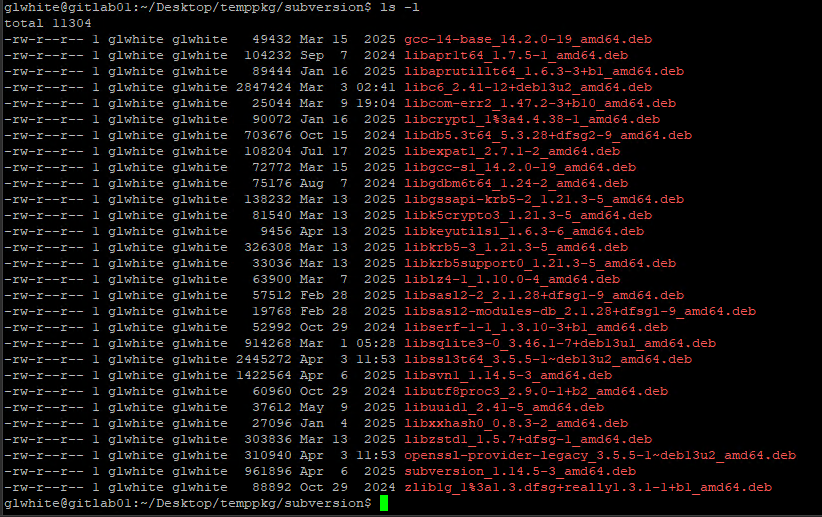
Here's what the downloaded dependency set (for subversion) looks like, today:
Target VM
Next, you need to move allthe dependenciesdependency set over to the target VM, by whatever means you have.
For me, I copied them out of the surrogate, via SCP.
Then, they were ferried across the network boundary as contentcommitted inchanges to an SVN repository.
repository (visible on both sides).
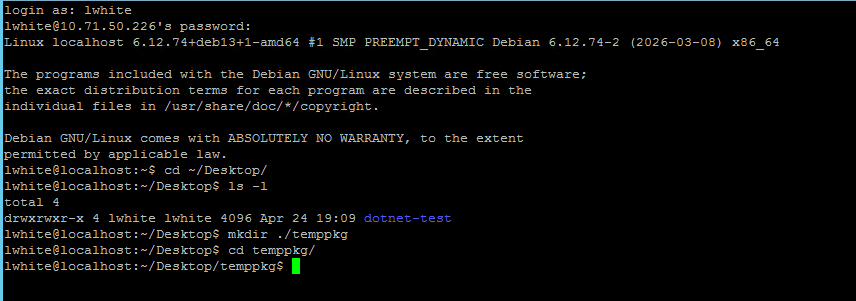
Next, log into the target VM, and create a download folder, where you will push the dependency set.
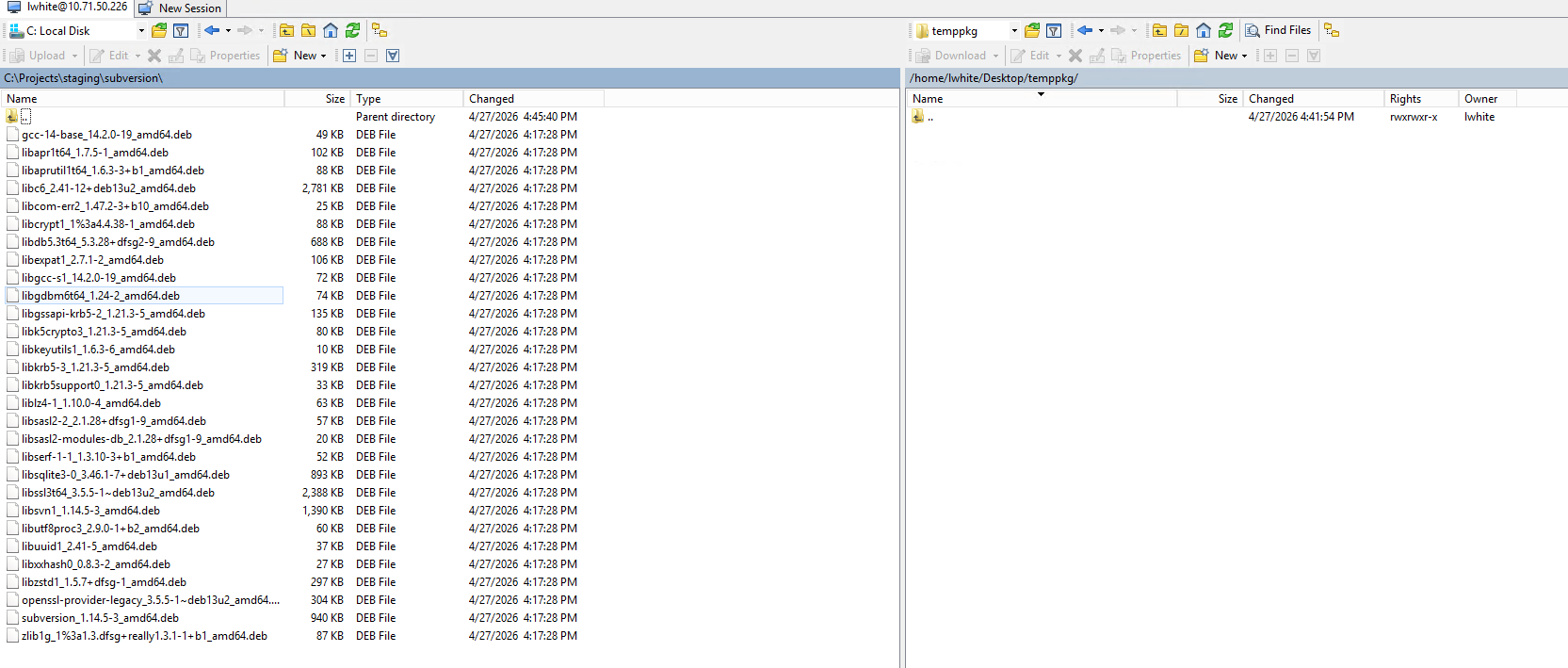
Then, another SCP push to a temporary folder on the target VM.
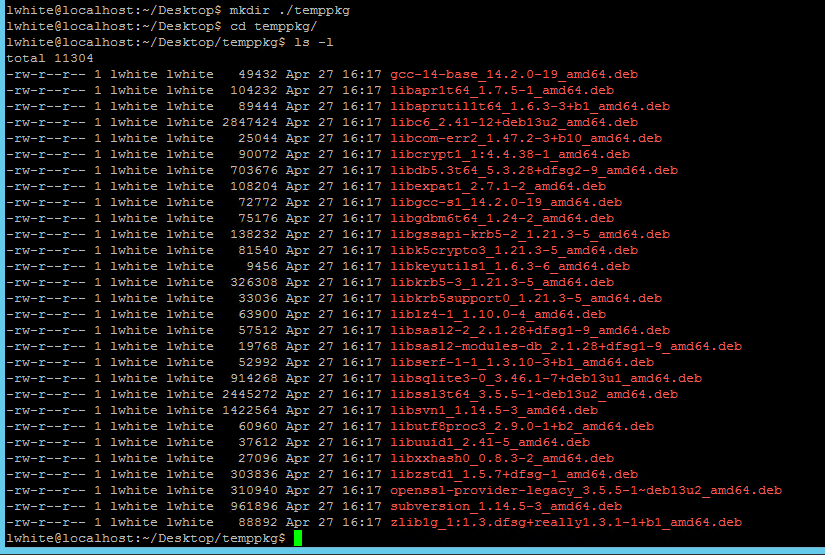
Once the packages are on the target VM, open an SSH session to it, and navigate to the download folder.
Confirm the dependency set is there:
Warning: To prevent an apt elevation warning, read ahead on how to set permissions on the dependency folder, first.
From inside the folder with the dependencies, run this, to install all of them:
sudo apt install ./*.debThe installation ran for a good bit, and finished.
But, it did have, what appears to be, an error.
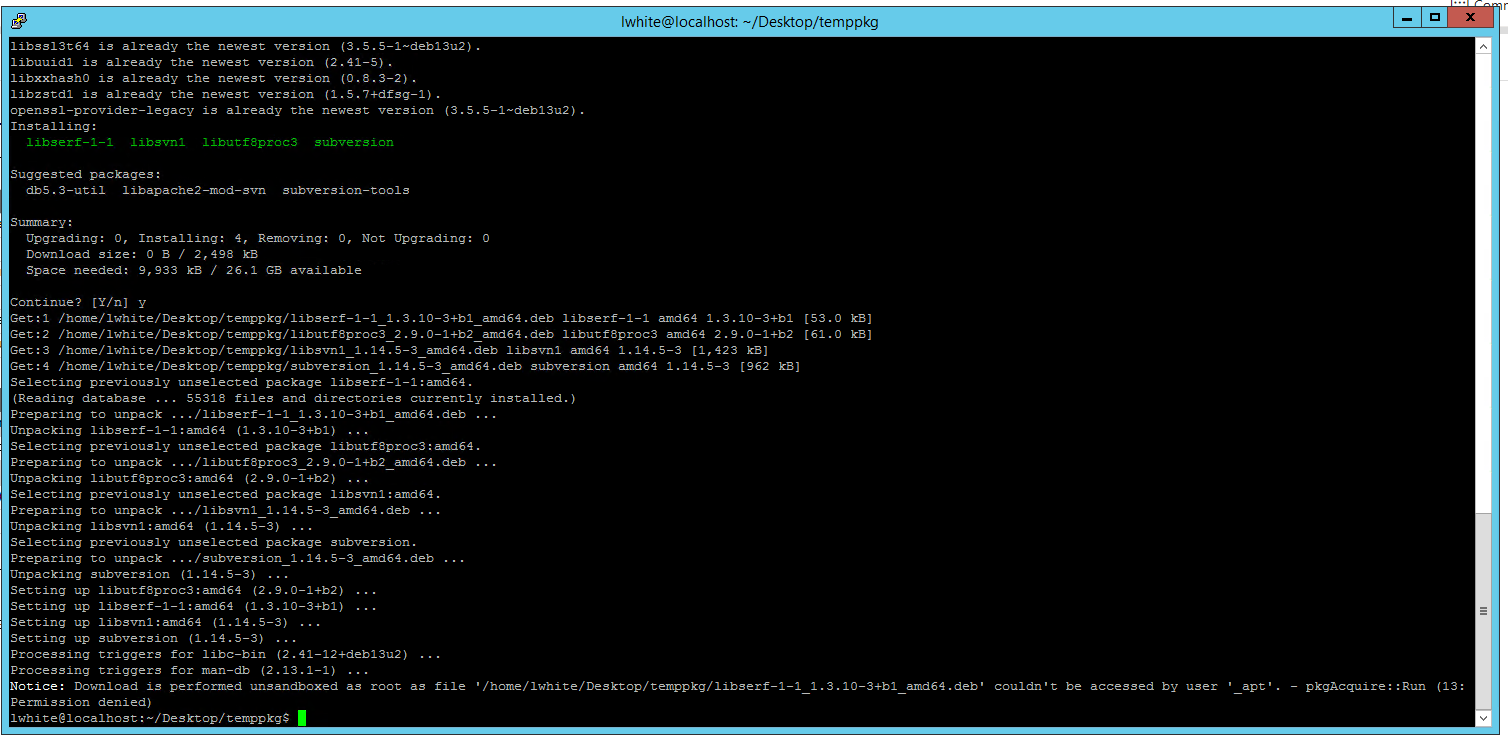
At the tail of the installation scroll, you may see an _apt notice that looks like an error. See above.
That final notice is not a failure.
It just means APT could not read the local .deb files as the low-privilege _apt user, so it read them as root instead.
That notice can be prevented by making the folder/files world-readable before installing.
Run this to make the downloaded packages and folder world-readable:
chmod -R a+rX ~/Desktop/temppkgValidation
Since we were installing SubVersion, we can confirm its installation, with this:
svn --version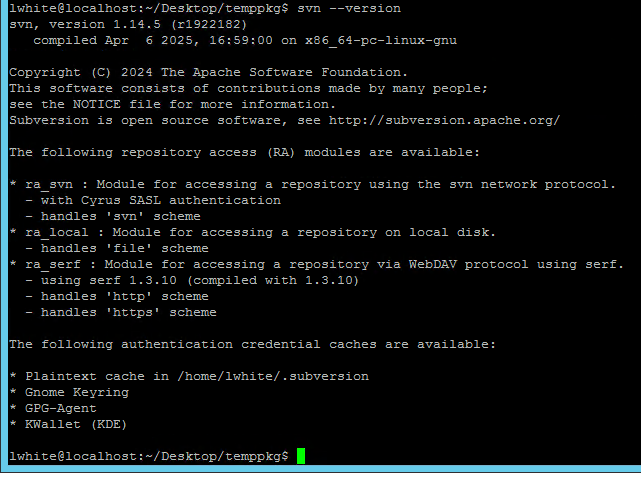
Cleanup
Once installed, you can remove the packages and download folder, with this:
cd ~/Desktop
rm -rf ~/Desktop/temppkg