
ESXi - Fixing Inaccessible NFS Share
NOTE: See bottom of article for esx243 NFS script.
To fix this isn’t a simple right-click reconnect, unfortunately.
So, here goes…
Open a Putty session to the ESX host as the root user.
Run this to list NFS shares:
esxcli storage nfs listesxcli storage nfs41 listIt might not come up with anything. No worries.
Open a web session to your ESX host, and copy out the datastore name (the inaccessible one), like this:
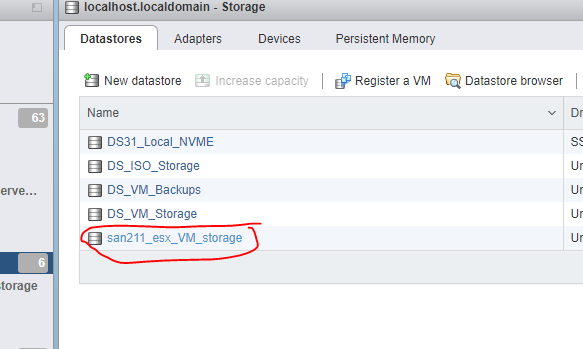
Now, delete the inaccessible share by running the following from the Putty session:
esxcli storage nfs remove -v DATASTORE_NAMENOTE: Replace DATASTORE_NAME with the name of the datastore you got from the ESX host web UI.
The above command will forcibly remove the NFS share.
You should be able to confirm it is gone from the web UI.
Once it is gone, you need to re-add the datastore by creating a new one.
The config dialog would look like this:
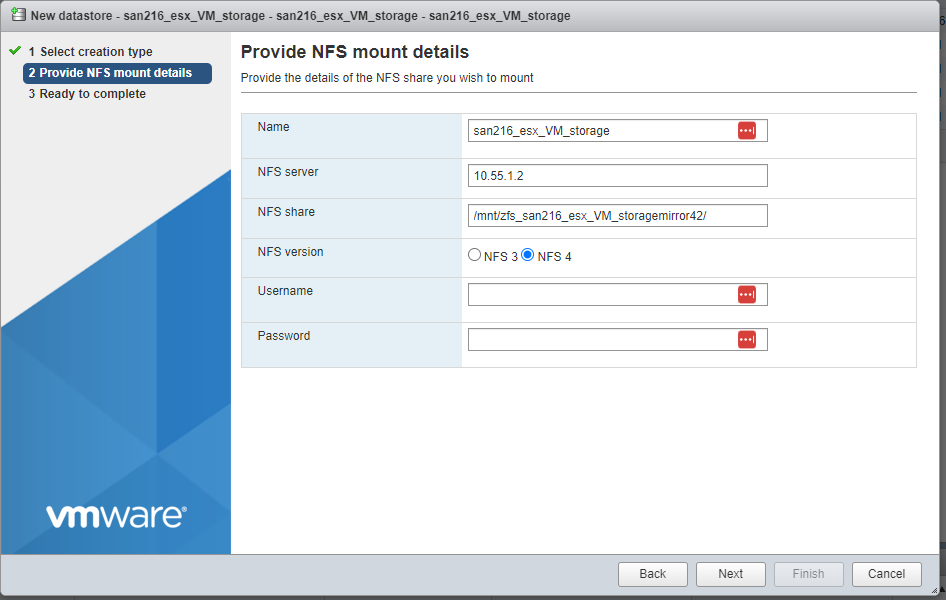
Once done, you should be able to refresh the web UI and the “inaccessible” states will slowly go away as VMs are scanned.
The add datastore can also be scripted by doing the add from the command, of this form:
esxcli storage nfs add -H HOST -s ShareName/MountPoint -v DATASTORE_NAME
Here’s a script for fixing the inaccessible NFS share of SAN216 on ESX243 whenever the power goes out:
esxcli storage nfs remove -v san216_esx_VM_storage

esxcli storage nfs41 add -H 10.55.1.2 -s /mnt/zfs_mirror42/san216_esx_VM_storage -v san216_esx_VM_storage
Here’s a script for fixing the inaccessible NFS share of SAN211 on ESX243 whenever the power goes out:
esxcli storage nfs remove -v san211_esx_VM_storage

esxcli storage nfs41 add -H 10.55.0.2 -s /mnt/zfs_mirror/san211_esx_VM_storage -v san211_esx_VM_storage