
.NET How to Create and Publish Nuget Package
Taken from here:
Here is more content on additional properties for a nuget package:
docs.microsoft.com-nuget/docs/reference/msbuild-targets.md at main · NuGet/docs.microsoft.com-nuget
TODO: Add in details for nuget symbol packages from here:
Documentation - MyGet - Hosting your NuGet, npm, Bower, Maven, PHP Composer, Vsix, Python, and Ruby Gems packages
And, here:
How to publish NuGet symbol packages using the new symbol package format '.snupkg'
HOWTO Steps
There are a couple steps to publish a nuget package:
-
Set Package Properties
-
Build Project
-
Update Release Notes
-
Create Nuget Package
-
Push to Nuget Feed
Package Properties
Open the csproj file and set at least the following lines:
<PackageId>AppLogger</PackageId>
<Version>1.0.0</Version>
<Authors>your_name</Authors>
<Company>your_company</Company>
Open the project properties in Visual Studio, and set the following:
-
Make sure the Package ID (
PackageId) is unique across your Nuget repository. -
Set the Package Version (Version) as needed.
-
Set the Package Version in the csproj file…
Make sure the Package Version (Version) changes each time the package is pushed.
This is done by incrementing the build number parameter in the Package Version string.
Use Package Version strings like this: <major.<minor>.<patch>-build<buildnumber>
Ex.: 1.0.0-build2. -
Set the project’s Assembly Version to reflect the Package Version: 1.0.2.0
-
Set the Authors field.
-
Set the Product field.
-
Set the Company field.
-
Set the Desription field.
-
Set the Target Framework field.
Here’s a sample of the csproj file with the normal fields set for a nuget package:
<PropertyGroup>
  <TargetFramework>net5.0</TargetFramework>
  <PackageId>OGA_SharedKernel</PackageId>
  <Authors>Lee White</Authors>
  <Product>OGA Libraries</Product>
  <Version>1.0.0</Version>
  <GeneratePackageOnBuild>true</GeneratePackageOnBuild>
  <Description>Base Exceptions, attributes, config and process globals, and a few other elements that are used by all projects.</Description>
  <Company>OGA</Company>
</PropertyGroup>
Build Project
Build the project in release mode to enable optimizations.
Update Release Notes
This step is straightforward.
Update the RELEASE-NOTES.txt file for the project. This should be located in the VS solution, just outside the project, like here:
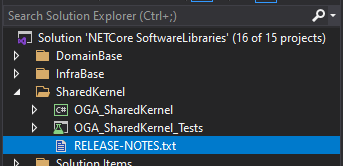
If the release notes file cannot be located for the project, see if one is defined for the project.
Right-click the project file and selecting “Edit Project File”.
Look for a section like this:
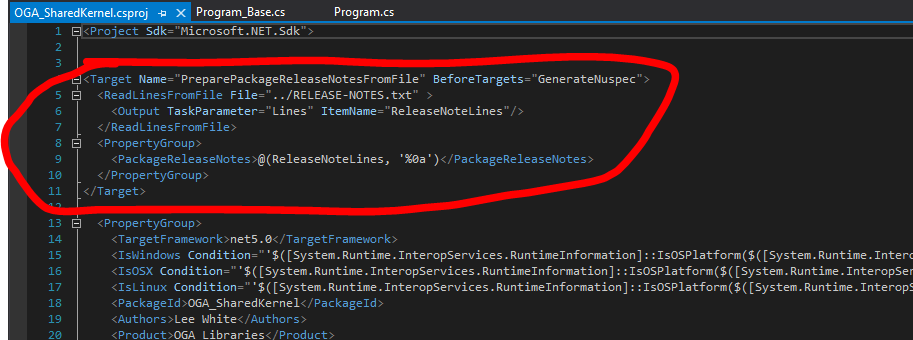
If this section exists, the “ReadLinesFromFile parameter tells where the Release Notes are located.
Locate the release notes file, update its content for the new version, and move to step 4.
If this section is missing, no release notes are setup yet.
Go here, How To Add Release Notes to Nuget Package, to create release note content for the version, and move to step 4.
Create Nuget Pakage
Run the Pack command, from the CLI, to create the nuget package (Visual Studio 2019 will do this during build):
dotnet pack
Push to Nuget Feed
Push the package to the nuget server using the CLI:
dotnet nuget push -s https://buildtools.ogsofttech.com:8079/v3/index.json "P:\Projects\NETCore SoftwareLibraries\NETCore SoftwareLibraries\OGA_SharedKernel\bin\Debug\OGA_SharedKernel.1.0.0-build3.nupkg"Push the symbol package to the nuget server using the CLI:
dotnet nuget push -s https://buildtools.ogsofttech.com:8079/v3/index.json "P:\Projects\NETCore SoftwareLibraries\NETCore SoftwareLibraries\OGA_SharedKernel\bin\Debug\OGA_SharedKernel.1.0.0-build3.snupkg"
No Comments